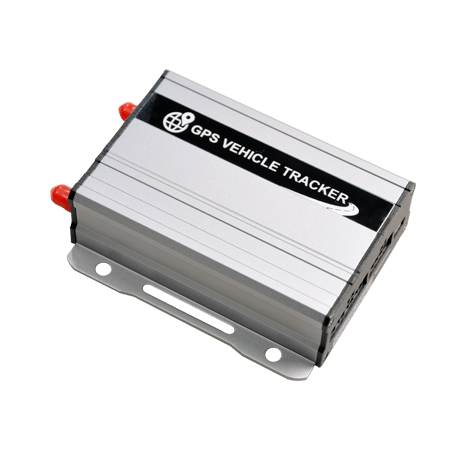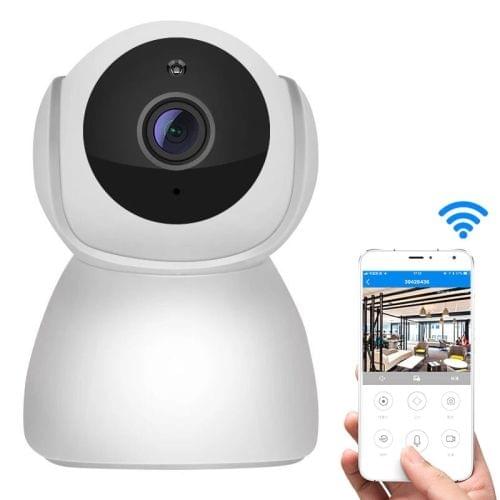

Connect Your Smart Devices
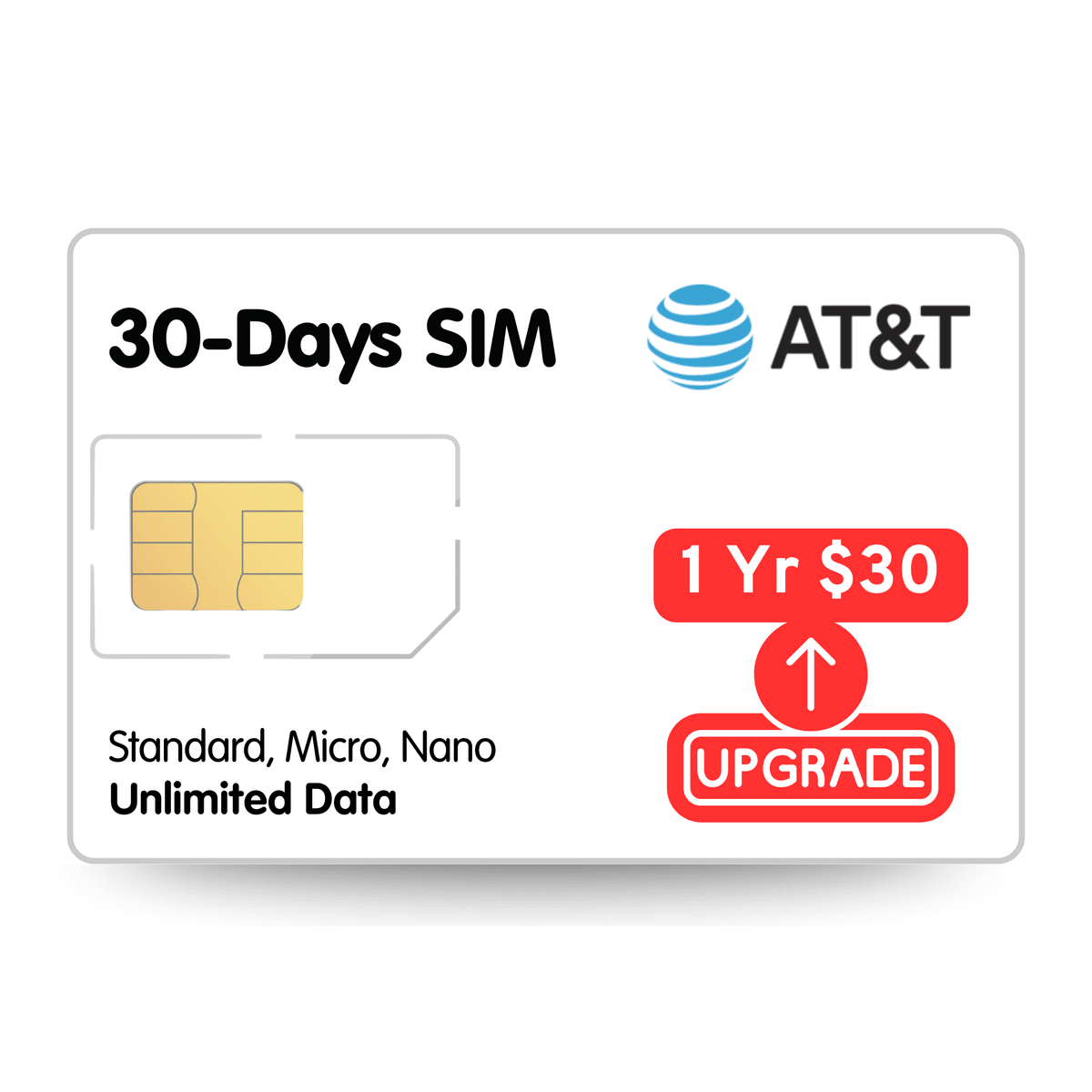
VoicePing SIM cards offer a physical SIM card for IoT devices. It provides low data usage at an affordable cost.
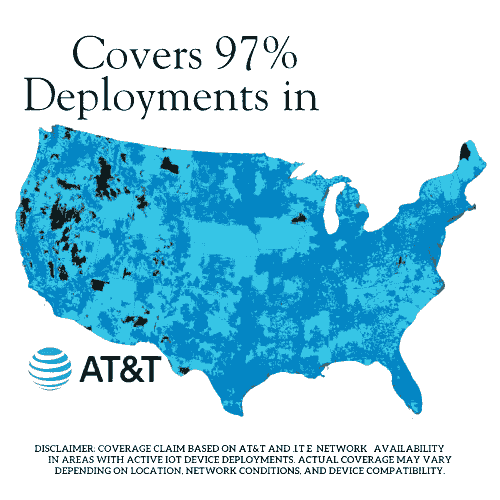
Seamless Network Connectivity
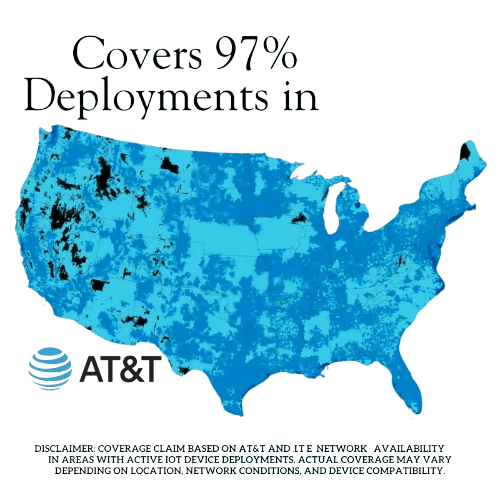
Automatically connects to the AT&T network for reliable nationwide coverage across supported 4G and 5G data networks.
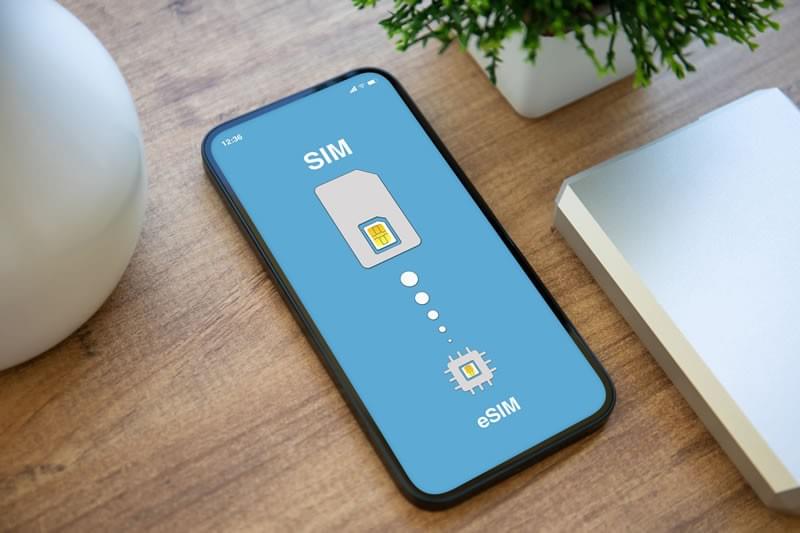
Physical or eSIM options
Most IoT devices still need a physical sim which is what we provide. Optionally also ask for our eSIM package if you plan to use on supported devices.
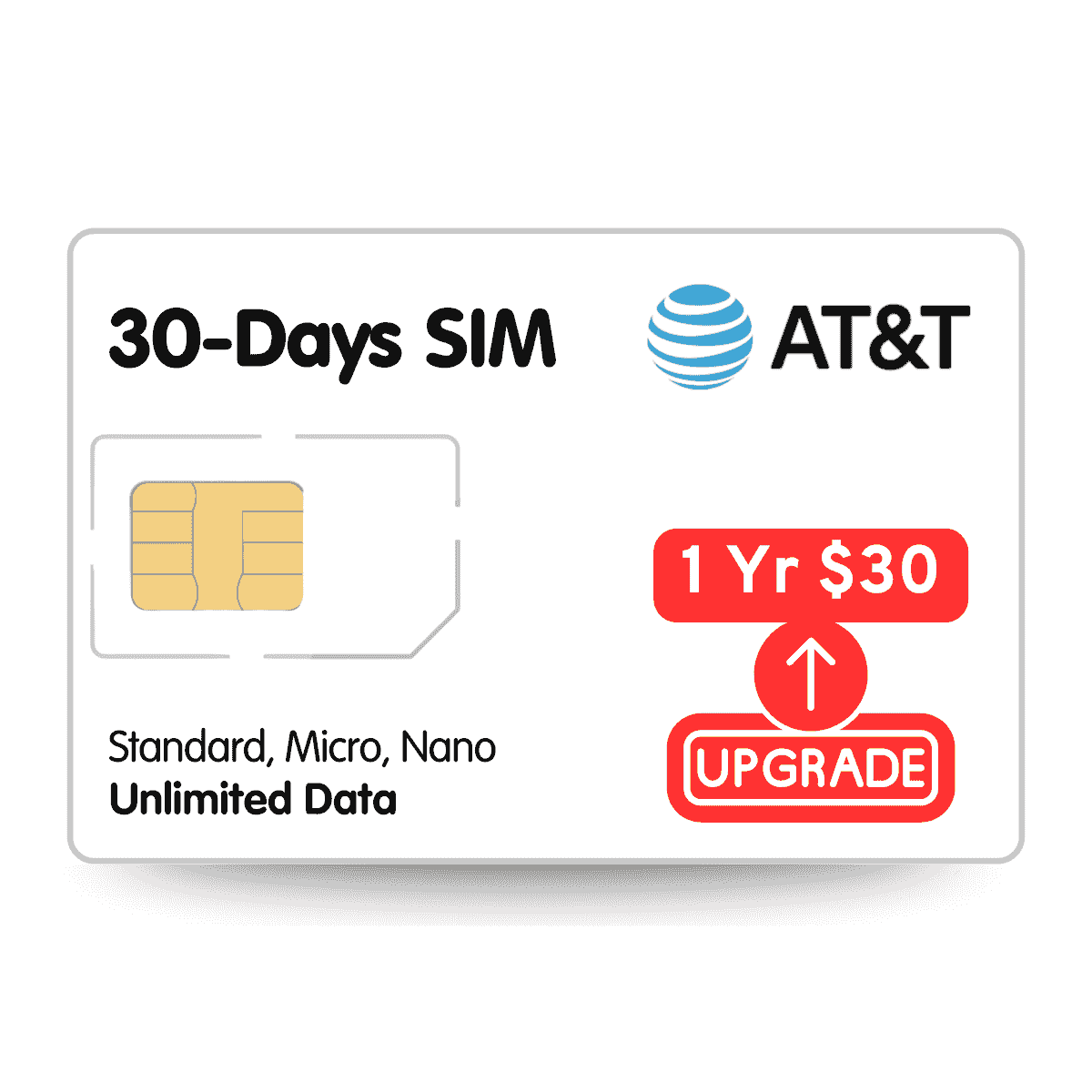
30-Day Unlimited Data Trial
Test your IoT devices with unlimited 128 kbps data, no contracts or hidden fees. Upgrade anytime to our 365-day plan.
Purchase via Amazon. Note: Data routes via Hong Kong (~400ms latency); not suitable for TikTok or real-time apps.

High-speed data
Need faster bursts of speed or more data for non-text-based IoT use cases?
We offer a 30GB data add-on that you can use throughout the 365 days so you can get those pictures or short videos faster.
Flexible Pricing Plans
No contract. No activation fees. Uses AT&T (U.S. only).

Recommended

1-Year Unlimited
$30.00
Unlimited data at 128 kbps for 1 year. For IoT devices, GPS trackers, sensors, low-data devices.

1-Year + 30GB Full Speed
$69.00
1 year service with 30GB full-speed data. Unlimited data at 128 kbps after 30GB. Best for dashcams, routers and data-heavy IoT use
Getting Connected with VoicePing in Minutes
Effortless Activation for Reliable, Unlimited IoT Connectivity
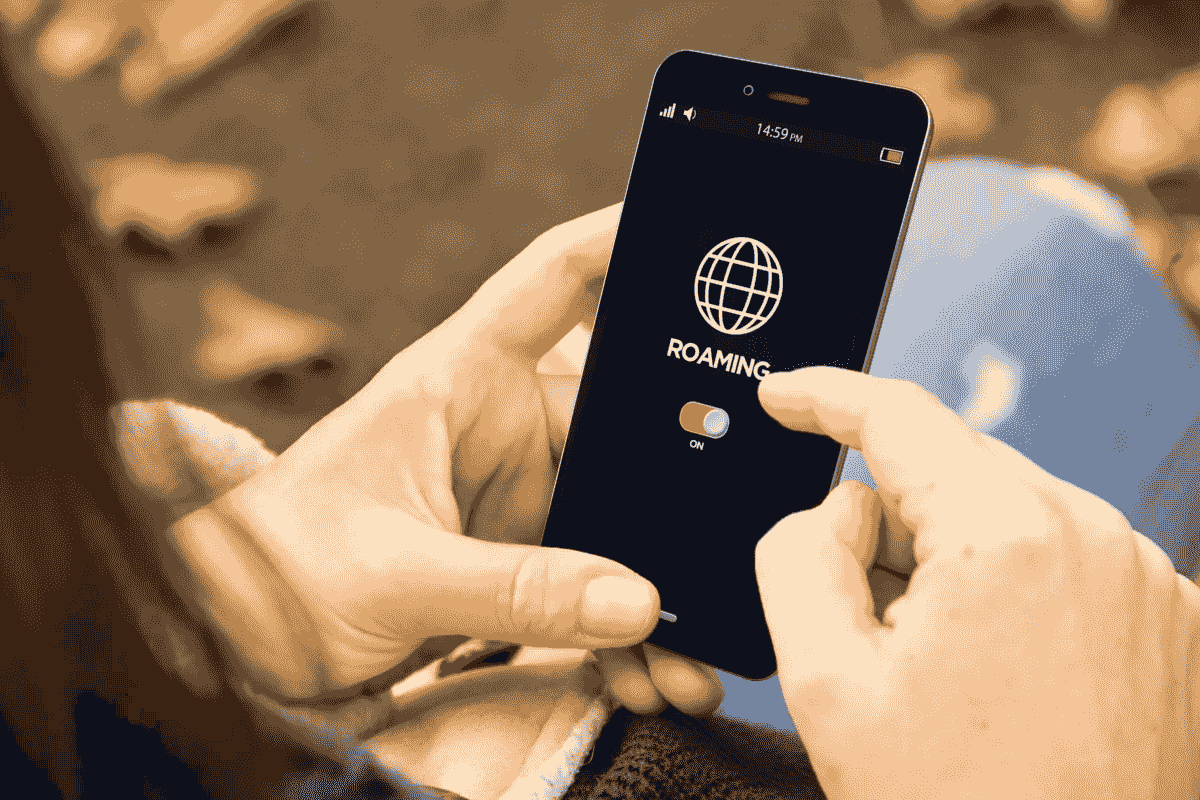
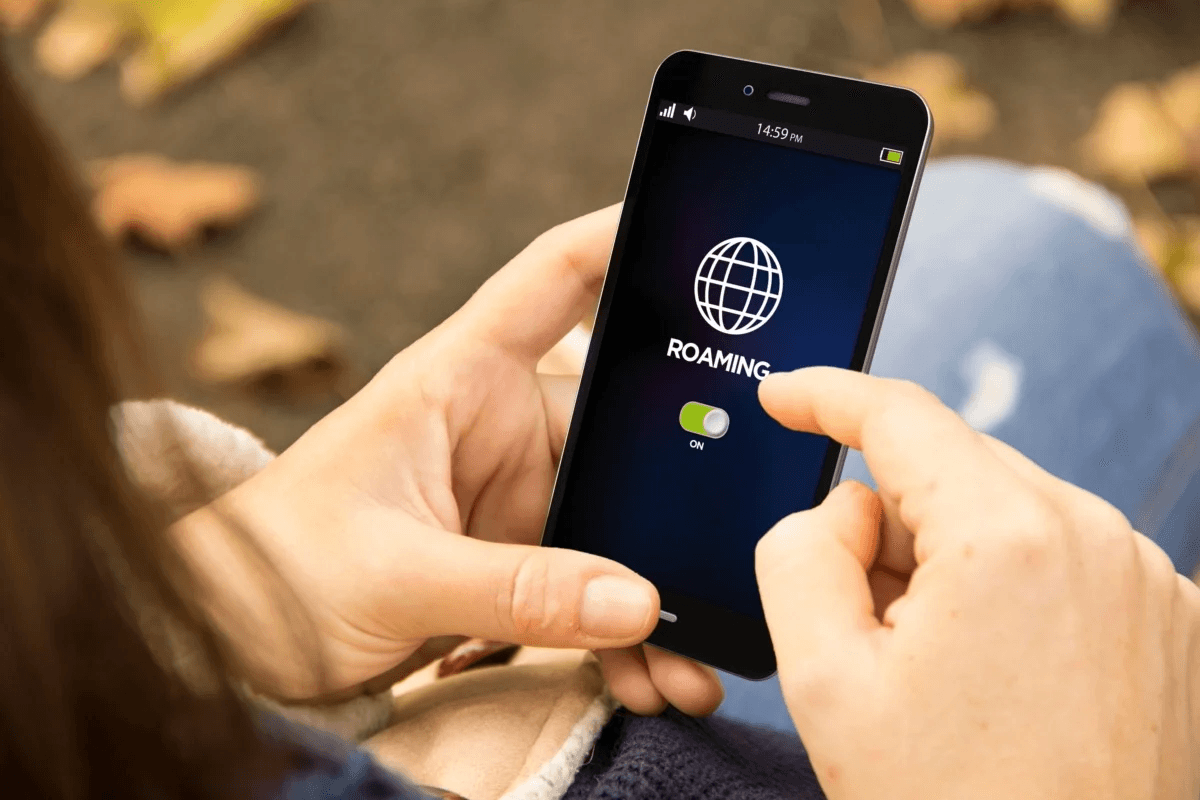
Step 1: Turn on Data Roaming
Activate your IoT SIM by turning on Data Roaming, this enables seamless connection to supported networks like AT&T with no extra charges.
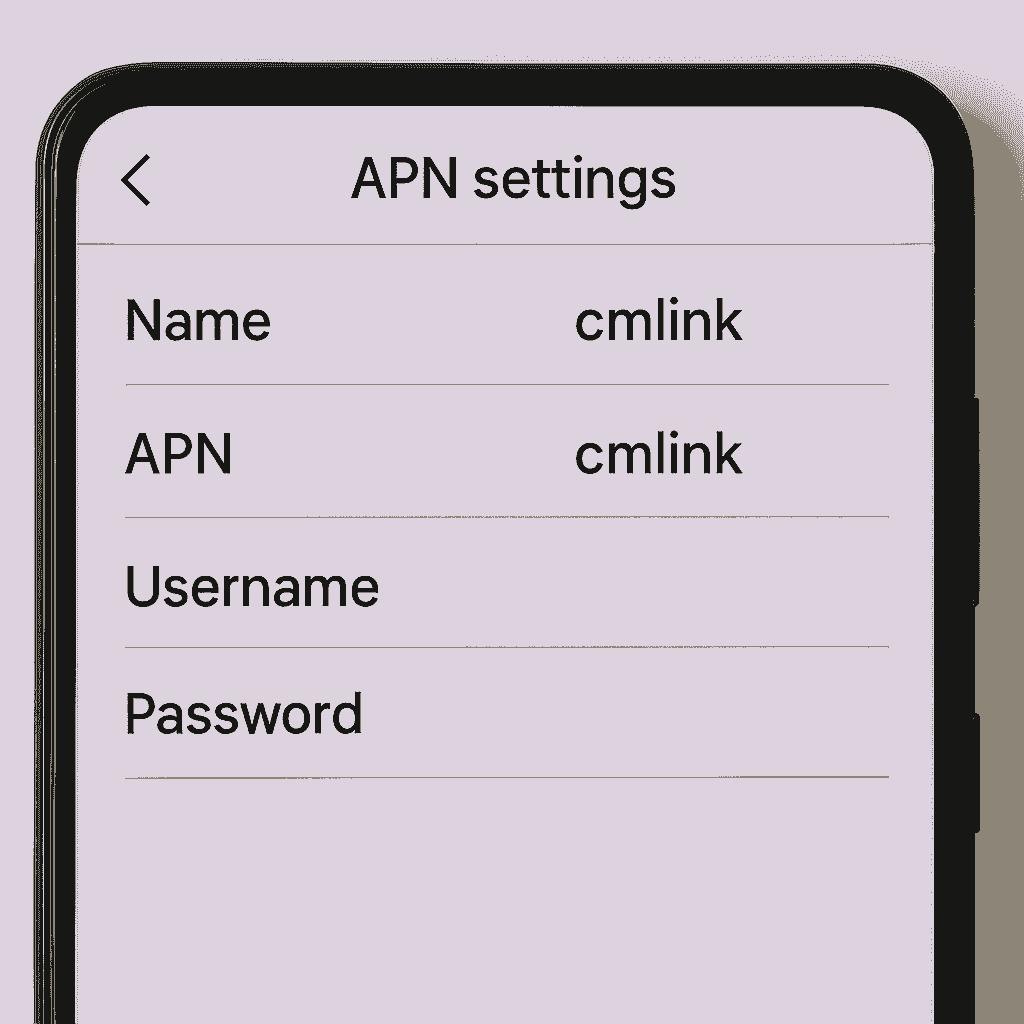
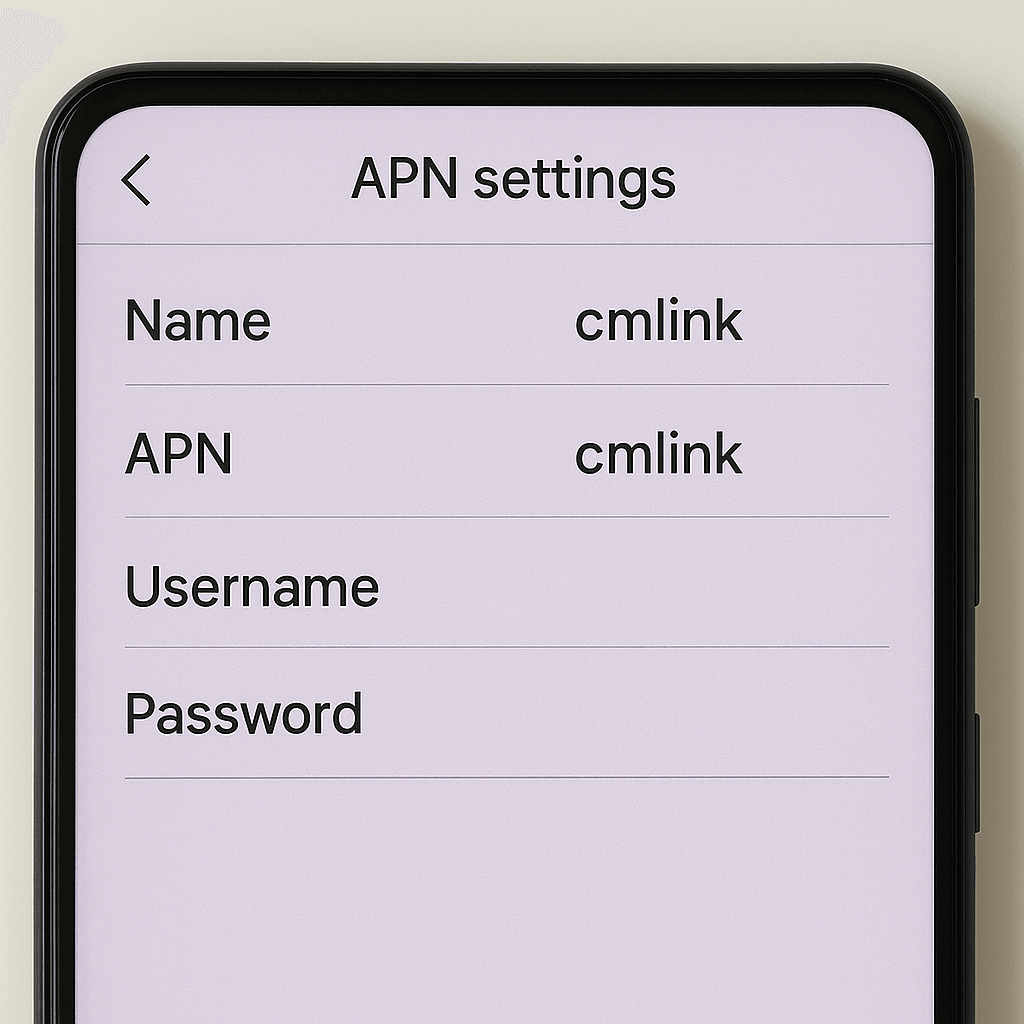
Step 2: If the APN isn’t set, set it to ‘cmlink’.
Most devices auto-configure. If not, go to Settings > Mobile Network > Access Point Names, tap +, and enter: Name: cmlink APN: cmlink
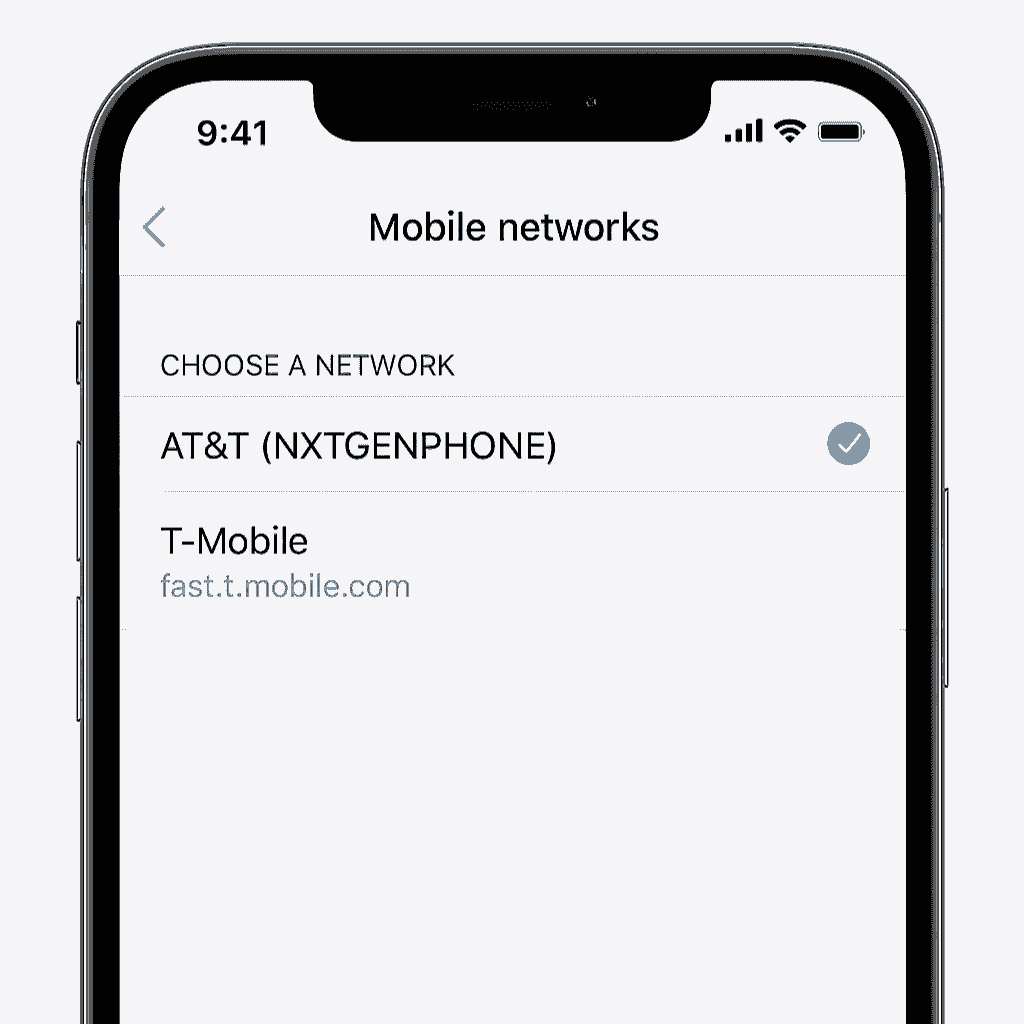
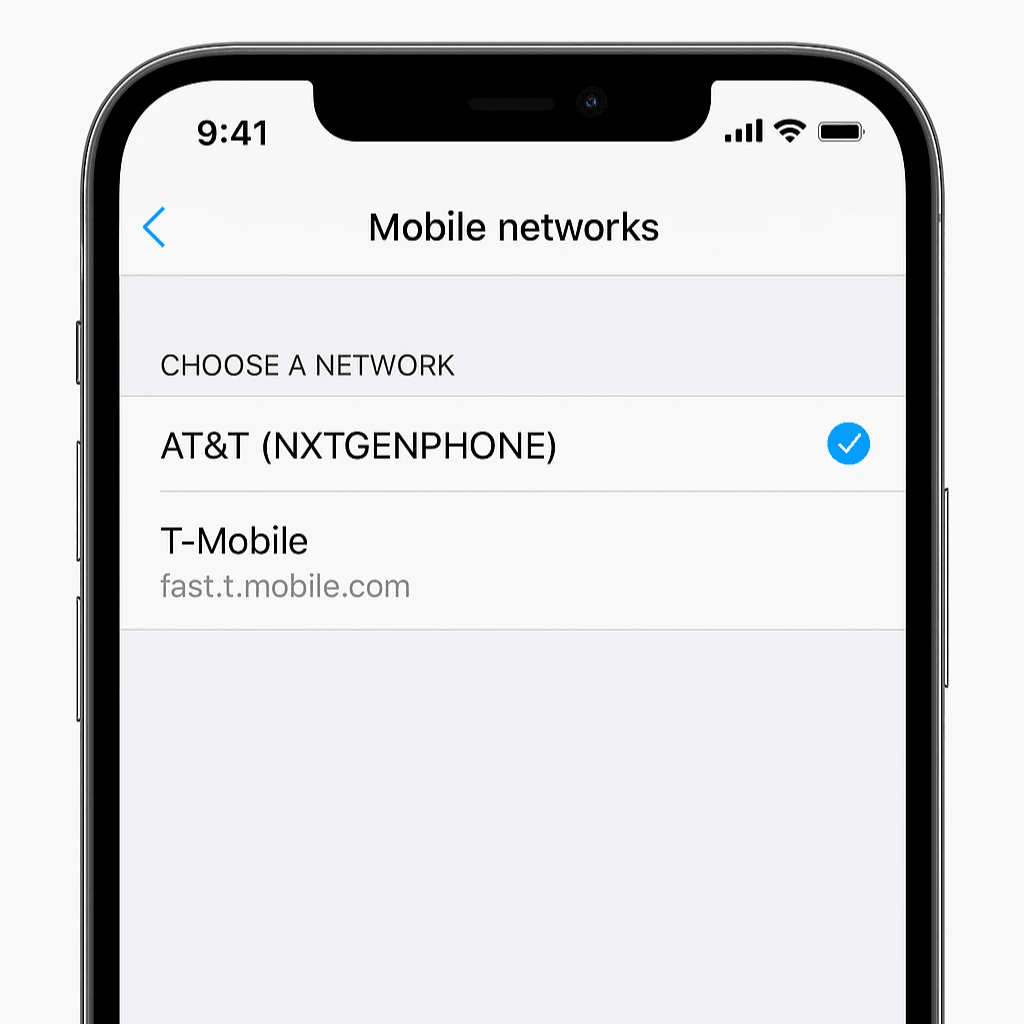
Step 3: Choose Your Network
Choose AT&T network for best connectivity.
Choose the Right Data SIM for Your Device
Effortless connectivity for your smart devices , perfect for personal or business use!
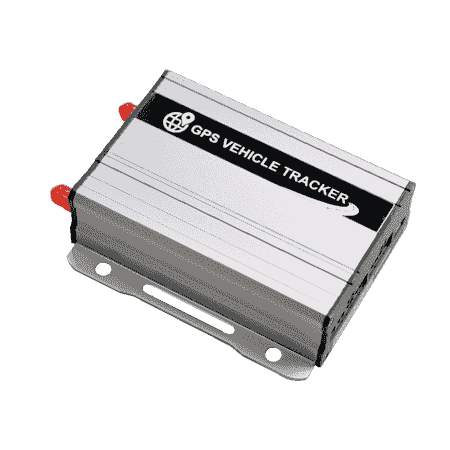
IoT 128 kbps
Low-data use for trackers, smartwatches, sensors like GPS devices, children's smartwatches
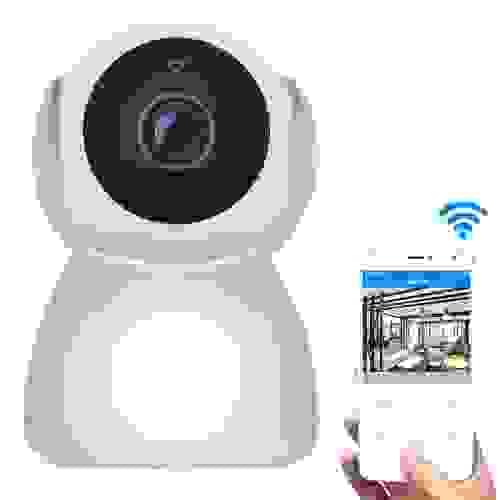
Full Speed Data 30GB
High-speed data for video devices like CCTV, dashcams, video surveillance

ESIM
Smartphones and tablets with occasional Mobile Data usage
Support & FAQs
Reliable answers. Real support. Anytime you need it.
What devices are supported?
VoicePing SIM works with a wide range of IoT devices including trackers, sensors, and smart meters.
Can I upgrade later?
Yes, you can easily upgrade your plan anytime as your IoT needs grow. Upgrade to a longer duration and optionally with high-speed.
Can I use VoicePing SIM outside the US?
Currently, VoicePing supports connectivity primarily within the US. International options are coming soon.
Can I buy the VoicePing SIM card on Amazon?
Yes! You can purchase the VoicePing SIM card directly from our official Amazon listing. Many customers prefer this option for the convenience, fast shipping, and trusted checkout.
Why is my connection slower or delayed on some apps?
Our IoT SIM routes data through Hong Kong, which introduces ~400ms latency. It's designed for low-data IoT devices and not suitable for apps like TikTok or real-time streaming.
Can I use this on a CCTV?
Unlimited 128 kbps is subjected to fair use policy of 3GB a month. Excessive, continuous traffic will lead to suspension. Non compliant use cases are CCTV, Video Streaming etc. Please buy a 30GB high speed plan for these use cases.
How do I check my current plan or data usage?
Please use https://usage.voiceping.com/ to check your data usage, current plan expiry date and current plan details.
GPS Tracker Shows “No Data” or “Offline”?
This happens because usually if your GPS tracker needs to setup to use the VoicePing SIM. The requirements are
1) to switch on Data Roaming and
2) Set the APN to “cmlink”. To do these configuration, consult your GPS tracker manual to see how this can be done. You might need to send an SMS or connect via Bluetooth.
If your GPS accepts SMS commands for configuration. You need to prepare 2 regular SIM cards that can send and receive SMS. These 2 SIM cards is used one time for GPS tracker set up. VoicePing SIM is NOT A SMS capable SIM card.
SIM 1: stays in your smartphone (used to send commands)
SIM 2: goes inside your GPS tracker (to receive the commands)Step-by-Step Setup
Step 1: Insert a Regular SIM into the GPS Tracker
- Insert SIM 2 (any SIM that can send/receive SMS) into the tracker.
- Power ON the tracker and wait about 1–2 minutes for it to connect to the network.
Step 2: Send the APN Setup Command
- Using your own smartphone (with SIM 1, your regular SIM),
- Send an SMS to the number of SIM 2 ( inside the tracker with the command for setup)
- Examples are like apn,cmlink,# OR If your tracker requires a password, use this format instead: apn123456 cmlink. Wait for a reply message such as: APN OK, or SETUP OK
- This means your tracker has saved the internet (APN) setting.
**Consult your GPS Tracker Manual for specific commands that work with your Tracker. The commands listed here are FOR REFERENCE ONLY**
Step 3: Enable Data Roaming
VoicePing SIM requires Data Roaming to be on
- Using your own smartphone (with SIM 1, your regular SIM),
- Send an SMS to the number of SIM 2 ( inside the tracker with the command for setup)
- Examples are like ROAMING,ON# or ROAM,1# or ROAMING123456 ON
- Wait for a reply message such as: ROAMING OK
- This means your tracker has saved the internet (APN) setting.
Step 4: (Optional) Enable GPRS / Data Mode
Some GPS trackers are 2G only and require GRPS
- Using your own smartphone (with SIM 1, your regular SIM),
- Send an SMS to the number of SIM 2 ( inside the tracker with the command for setup)
- Examples are like GPRS,ON# or GPRS,1# or GPRS123456 ON
- Wait for a reply message such as: GPRS OK
Step 5: Insert the VoicePing SIM
After the configurations above are successful, you can insert VoicePing SIM into your tracker.
- Turn OFF the tracker.
- Remove the temporary SIM 2
- Insert the VoicePing SIM.
- Turn the tracker ON again.
Your tracker will now connect to the internet automatically using the saved APN (cmlink).
Notes
These steps are for GPS trackers that support SMS configuration.
You only need to do this once, your tracker remembers the settings even after power off or SIM change.
Make sure both temporary SIMs (SIM 1 and SIM 2) have signal and SMS balance during setup.How does SMS configuration work for IoT and GPS devices?
Many IoT and GPS devices use SMS as a command channel, not as a messaging feature.
When the SMS Pack is purchased and activated, you can send SMS to your SIM card via usage.voiceping.com. This allows for configuration commands to be sent via SMS to your device, where they are automatically received and executed by the device firmware (for example: setting APN, server address, reset commands).
There is no support for receiving SMS so any SMS that your device sends back about status is not received.
If your device instructions say “send an SMS command to configure the device,” the SMS Pack allows you to do that via the Send SMS interface on usage.voiceping.com.
Operating Hours
Monday to Friday, 9:30 am–5:30 pm.
Closed on Public Holidays. 2 Venture Drive, Vision Exchange, #08-05, Singapore 608526.